Free HEIC to PDF Converter
or drop it here
Learn about Canva’s upload formats and requirements. See how we use your content in our Privacy Policy.
Do you take and create images on your Apple devices? Make them easily accessible and shareable with Canva’s free HEIC to PDF converter.
Try these document editing tools
Edit and convert PDFs and more. All the PDF editing tools you need!
Effortlessly transform photos into documents
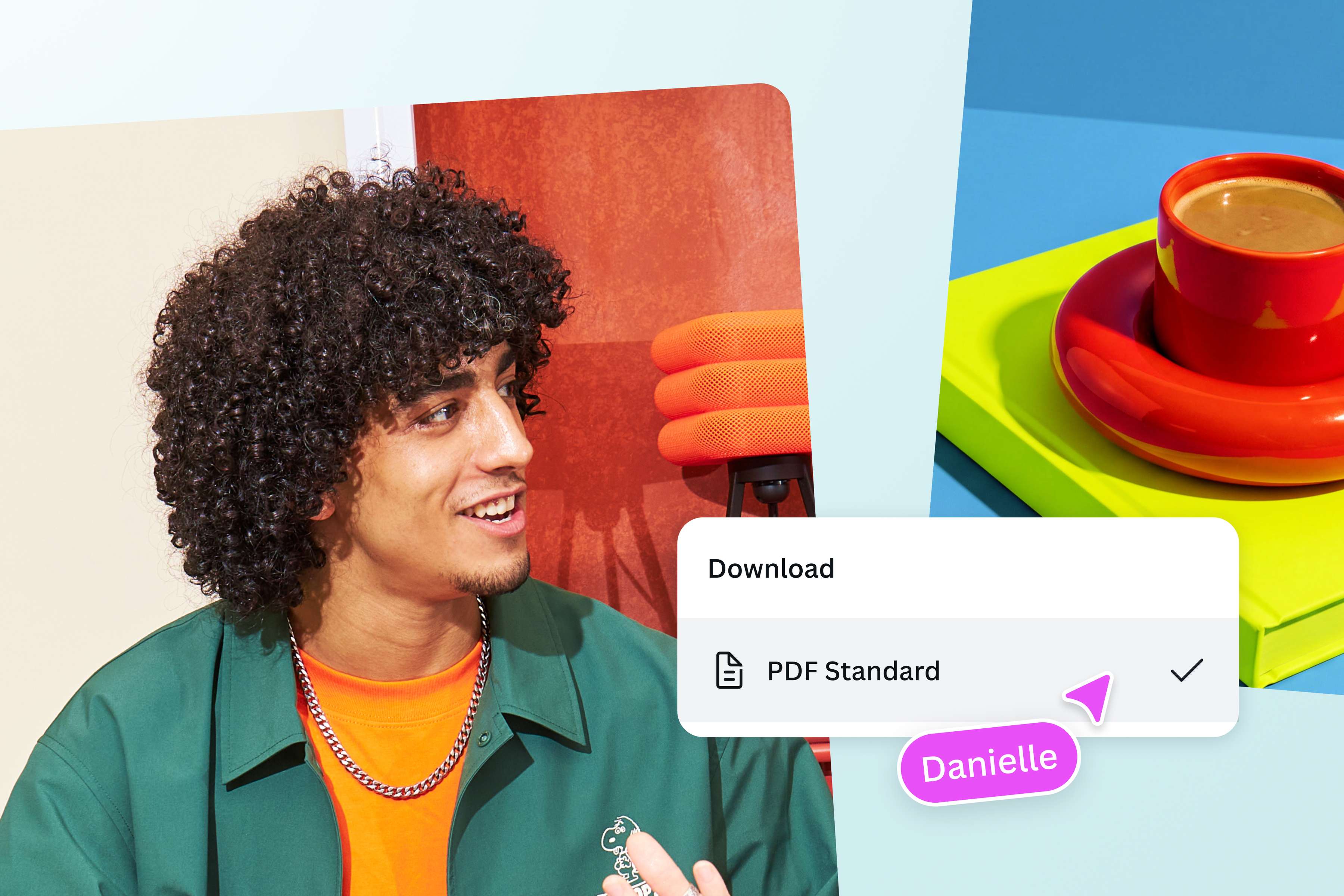
On Canva, you can easily convert HEIC to PDF without design experience, downloading separate software, or even leaving the platform.
Just drag and drop your HEIC file or click Upload your image on this page and get a PDF in seconds.
Convert and edit PDFs in one place
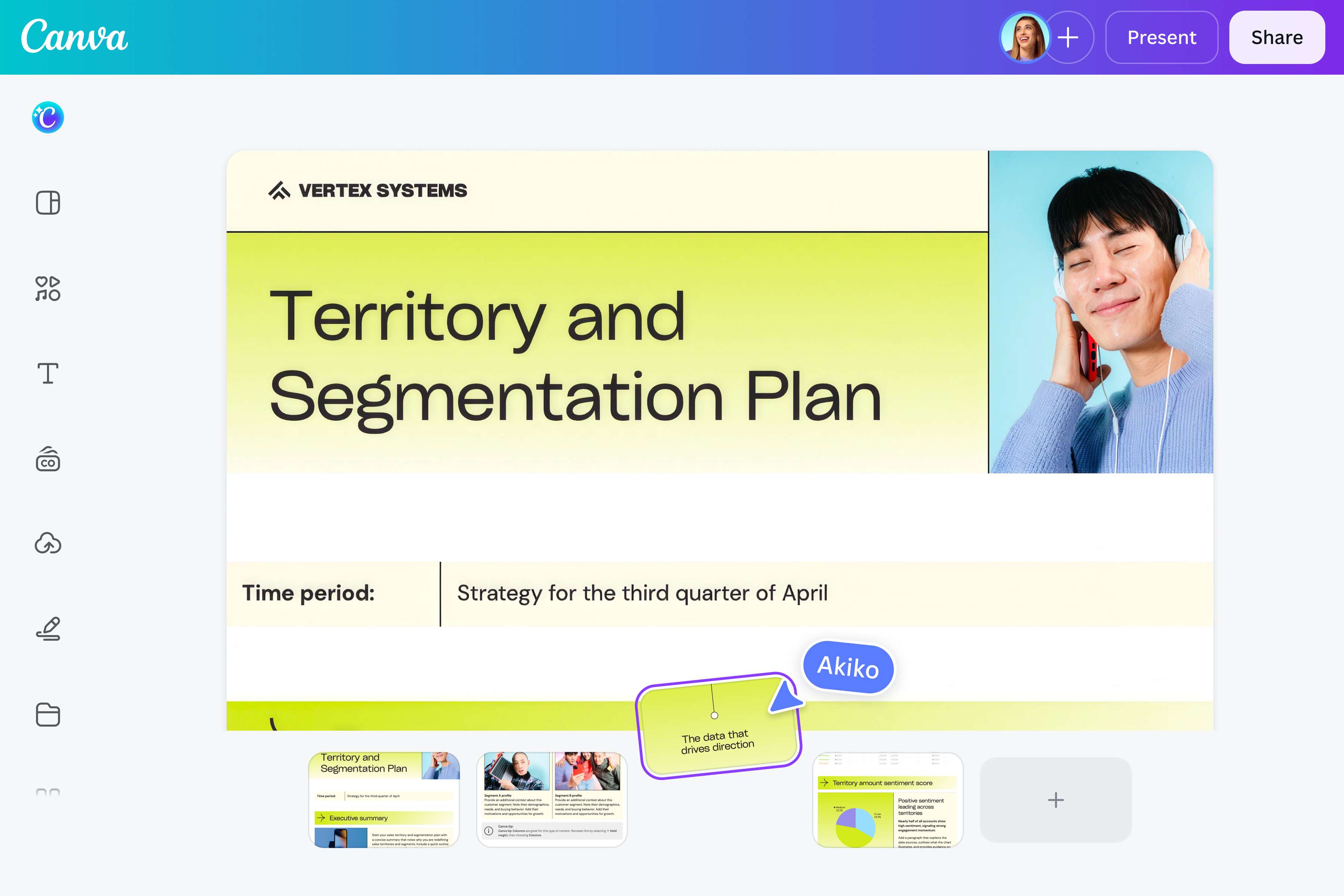
Beyond easy HEIC to PDF conversion, you can create professional-looking documents in minutes with our built-in PDF Editor. Edit, merge, organize, extract, or insert pages into your PDF without a hitch. Want to leave comments and ideas on your PDF? Use Canva’s freehand drawing and shape assist tools to draw over your designs.

Streamline your workflow
Simplify your workflow with our intuitive and instant converter. Convert images to PDFs you can share with your clients. Create portfolios, reports, or study materials. You can even involve your team by sharing a link, allowing you all to collaborate, assign tasks, leave comments, and work on the design simultaneously.
How to convert HEIC to PDF
Upload your HEIC file
Select Upload your image or drag and drop your HEIC right on the page, with files up to 50MB supported.Sign in to start converting
If you aren’t signed in yet, a prompt appears right after uploading. Sign in or sign up in seconds to begin your file conversion.Convert HEIC to PDF
Canva's online converter turns your HEIC file into a PDF automatically, with no desktop software to install. It may take a few minutes, and Canva lets you know when it's ready.Preview your PDF file
See your new PDF right on the page before you save it. The quality of your original photo stays intact, so the file you preview is exactly the file you'll download to your device.Download, share, or keep editing
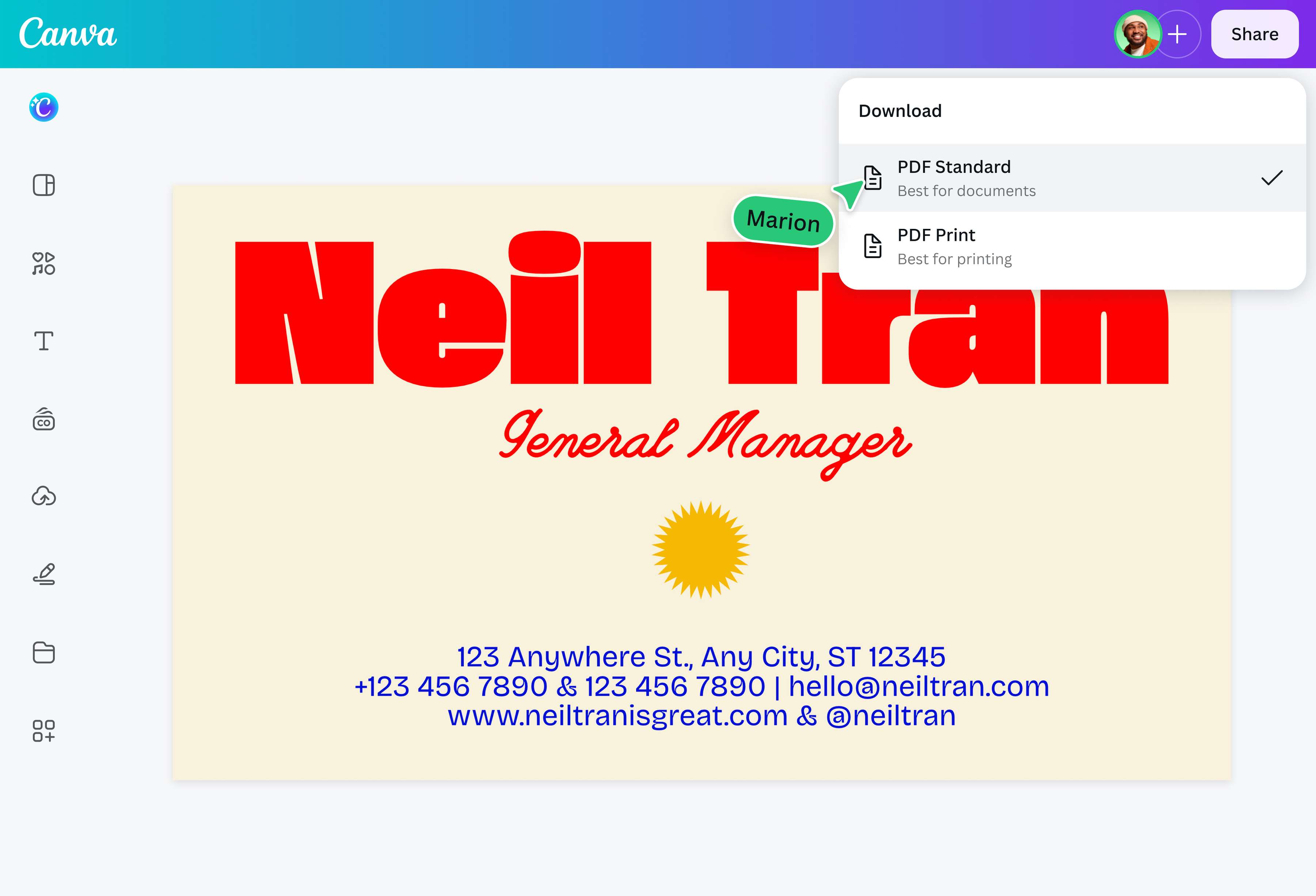
Select Download PDF to save the converted file to your device or Share to send it to teammates. Want to tweak the design first? Select Edit to open your PDF in the Canva editor.
Frequently asked questions
To view an HEIC file, you simply have to open it on an Apple device or any third-party program such as Canva. Alternatively, you can convert your HEIC files for clients and colleagues into more accessible formats such as JPG, PNG, or PDF for easy viewing on any type of device.